What This Module Does
WolfPaw's Fraud Screening and Detection module integrates MaxMind's fraud and risk detection network with your Miva store. For a half cent per query*, MaxMind's minFraud service analyzes each potential order and returns a risk score indicating the probability that the order is fraudulent.
The module screens every checkout before payment processing, which means fraudulent orders are stopped before they reach your payment gateway. This protects you from chargebacks, gateway fees, and inventory depletion from fraud orders.
The module provides:
- Risk-based order screening — Automatically decline orders above your risk threshold, send email alerts for suspicious orders, and let clean orders proceed normally.
- IP Velocity Protection — Detect and block IPs that repeatedly submit high risk orders within a configurable time window. Designed to stop bots and card-testing attacks while minimizing minFraud queries.
- Session Invalidation — When an IP is velocity-blocked, the attacker's checkout session is invalidated to prevent the use of multiple IP addresses to continue an order.
- Query Caching — Fraud analysis results are cached so that customers browsing your store don't trigger repeated MaxMind queries.
- IP Whitelisting — Bypass fraud screening for your office or corporate network IPs so you can process manual orders without inadvertent MaxMind declines.
- Professional HTML email alerts — Color-coded notifications with full order details, customer information, and the complete MaxMind response.
- Detailed daily logging — UTC-timestamped log files with automatic rotation and retention, viewable directly from the admin panel.
- CDN/Proxy detection — Automatic detection of the customer's real IP address behind CloudFlare, Akamai, nginx, and other proxy services.
MaxMind's risk scoring considers over 80 data points including geographic distance between the customer's IP and billing address, high-risk IP analysis, proxy detection, email provider analysis, phone number verification, and shipping address analysis.
*pricing as of March 2026
Learn more about minFraud risk scoring →
Get a MaxMind free trial with 1,000 queries →
Purchase WolfPaw's Fraud Screening and Detection Module →
New in Version 10.7
Version 10.7 includes all features from 10.5 plus significant new capabilities:
IP Velocity Protection New
Detects and blocks IP addresses that repeatedly trigger order declines. Configure the maximum number of order attempts within a time window, and how long blocked IPs remain locked out.The block duration slides forward with each new attempt, meaning the IP must go completely quiet for the full block period before being released. Includes email notifications when IPs hit velocity blocks, a customer-facing block message, and a velocity tracking table in the admin panel. The sliding window resets on each new attempt, preventing attackers/bots that keep trying from ever getting through to complete an order.
Session Invalidation New
When velocity protection blocks an IP, the module invalidates the attacker's checkout session. This blocks a sophisticated attack pattern with rotating IP addresses where bots use one IP to fill the cart and a second IP to submit payment thereby attempting to bypassing velocity limits.
Daily Log Files with Admin Viewer New
Logs are now stored as one file per day in the wp-antifraud.logs/ directory with automatic rotation and configurable retention. A built-in log viewer lets you browse and view log files directly from the admin panel. All timestamps—in logs, emails, and admin UI—use UTC for consistency across servers in different time zones.
Enhanced HTML Email Notifications
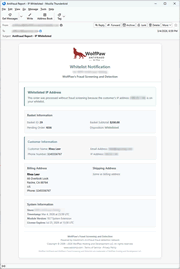
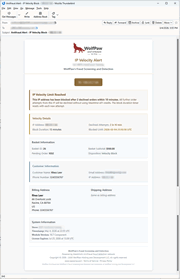
Responsive, color-coded email templates: red for declined orders, green for accepted, amber for velocity blocks, teal for whitelisted. Each email includes basket information with pending order ID, customer data, shipping and billing addresses, and the MaxMind analysis results with a collapsible technical details section.
Redesigned Admin Interface
Modern card-based layout with settings grouped into logical sections. Includes a Test Connection button to verify MaxMind credentials, a velocity tracking table with view/clear controls, and a collapsible log file browser.
Query Caching
Caches minFraud results so customers browsing your store don't trigger redundant queries. Cached results are automatically invalidated when the decline threshold or whitelist changes.
CIDR Notation for IP Whitelisting
Unified whitelist field supporting both IPv4 and IPv6 with standard CIDR notation. Whitelist entire networks with entries like 192.168.1.0/24 or 2001:db8::/32.
Enhanced IP Detection
Detects customer IP addresses behind CDN and proxy services by checking CF-Connecting-IP, True-Client-IP, X-Real-IP, and X-Forwarded-For headers. The admin panel shows the detected IP alongside the first-hop IP so you can confirm whether proxy detection is needed.
How the Module Works
The module integrates with Miva Merchant's checkout flow at the payment/shipping selection step. This ensures every potential order is screened—including COD orders, Simple Credit Card Validation, and offsite payment methods like PayPal—and that fraudulent orders are blocked before they reach your payment gateway or reserve inventory.
Here's what happens when a customer checks out:
- Customer enters shipping and billing information and proceeds to checkout.
- The module checks whether the customer's IP is whitelisted. If so, the order bypasses screening entirely (with optional notification).
- If velocity protection is enabled, the module checks whether the IP is currently blocked. Blocked IPs are immediately declined with the velocity block message and their session is invalidated.
- If query caching is enabled, the module checks for a cached result matching the customer's billing/shipping fingerprint. Cached results reuse the previous decision without querying MaxMind again.
- If no cache hit, the module sends the customer's data to MaxMind's minFraud API and receives a risk score (0–100%).
- Based on your threshold settings:
- If risk score ≥ your decline threshold → Order is declined, customer sees decline message
- If risk score ≥ your email threshold → You receive an alert email
- If risk score is below the decline threshold → Order proceeds normally
- If the order is declined (by risk score or cache), the decline is recorded for that IP address for velocity tracking. If the IP reaches the maximum number of declines within the time window, the IP is blocked and the session is invalidated.
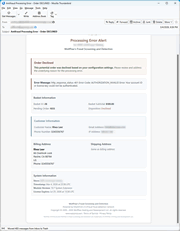
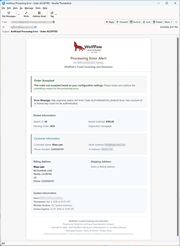
Processing Errors: If there's a connection error or MaxMind is unavailable, the module follows your configured error handling selection—either accept the order (recommended default) or decline it. You can receive email notification when errors occur, and the log records whether the order was accepted or declined due to the error.
Recommended Starting Settings: Set the email threshold to 0% (get notified of every order) and the decline threshold to 100% (don't auto-decline anything). This lets you learn how the system works and review real risk scores before enabling automatic blocking.
System Extension or Component Module?
The module package includes two versions. Choose based on your store's setup:
System Extension Version
Best for: Standard Miva stores with default checkout flow
How it works: Automatically activates at the OSEL page during checkout. No template modifications required.
File: wp_antifraudv10721_module.mvc
|
|
Component/Item Version
Best for: Custom checkouts, one-page checkouts, or heavily modified stores
How it works: You place a template tag on any page where the customer's billing and shipping address is known
File: wp_antifraudv10721_component.mvc
|
If you're unsure, start with the System Extension version. It works automatically for most stores. The module identifies itself as "(system)" or "(component)" in log entries so you can always confirm which version is running.
Note: Although the screen shots in the following instructions refer to version v10712. The current version is v10721.
Installation: System Extension Version
Follow these steps to install the system extension module:
1 Download and unzip the module package. Locate the system extension wp_antifraudv10721_module.mvc file on your computer.
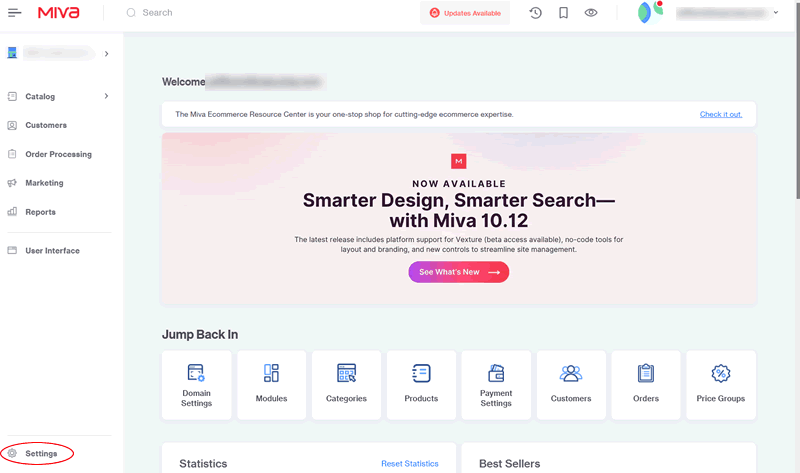
2 Open your Miva admin panel and click Settings in the main menu.
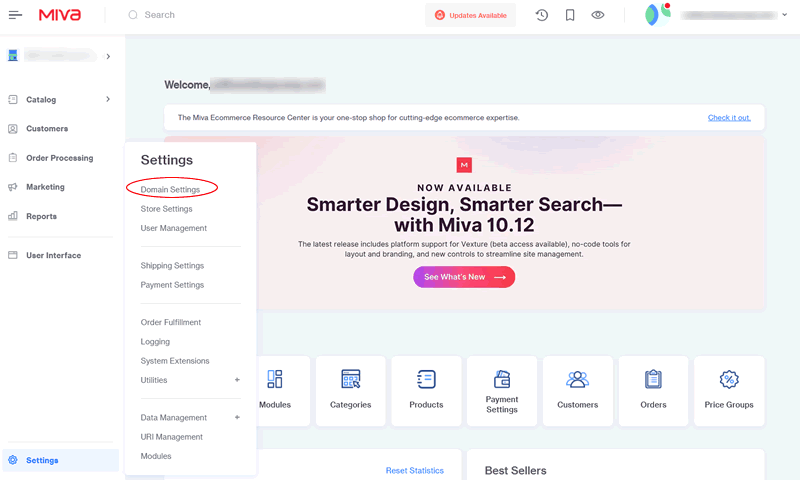
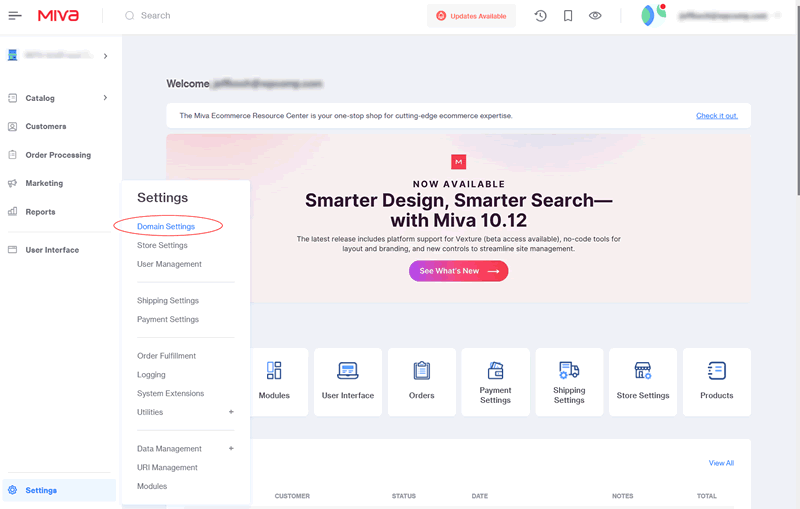
3 Click Domain Settings.
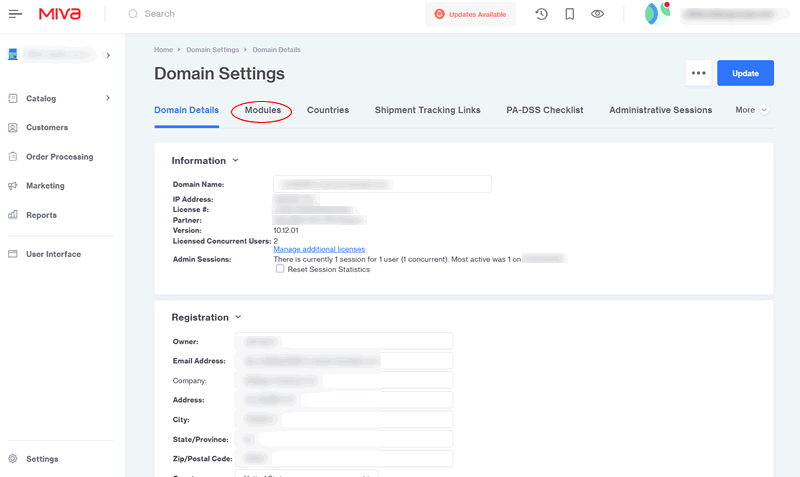
4 Click Modules in the top tabs.
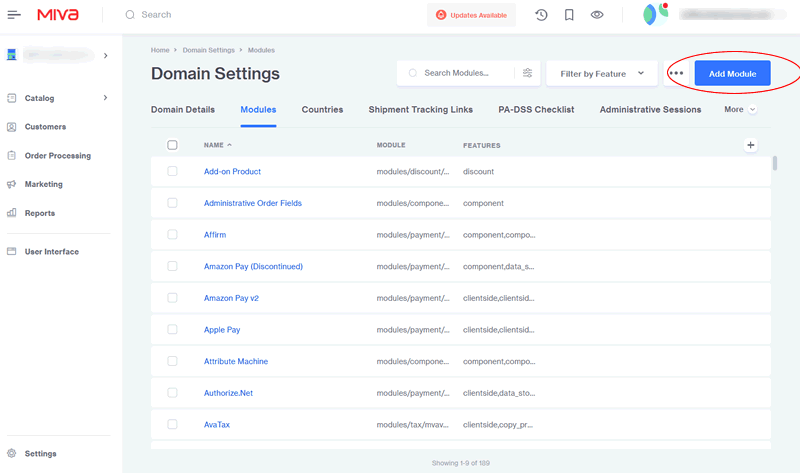
5 Click Add Module, then Upload.
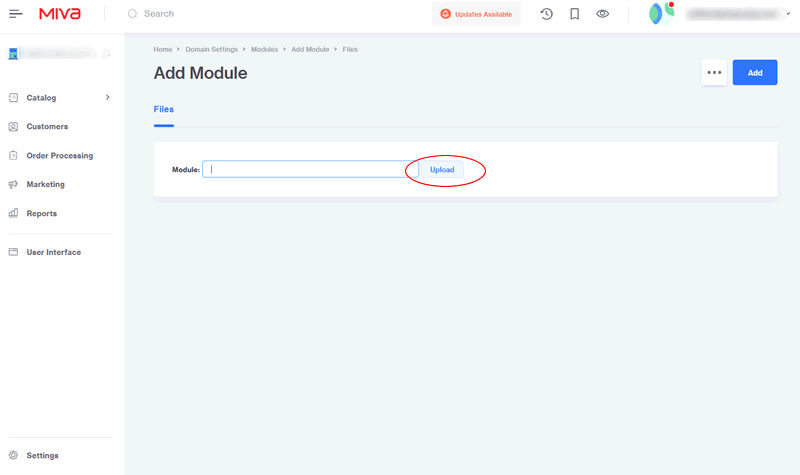
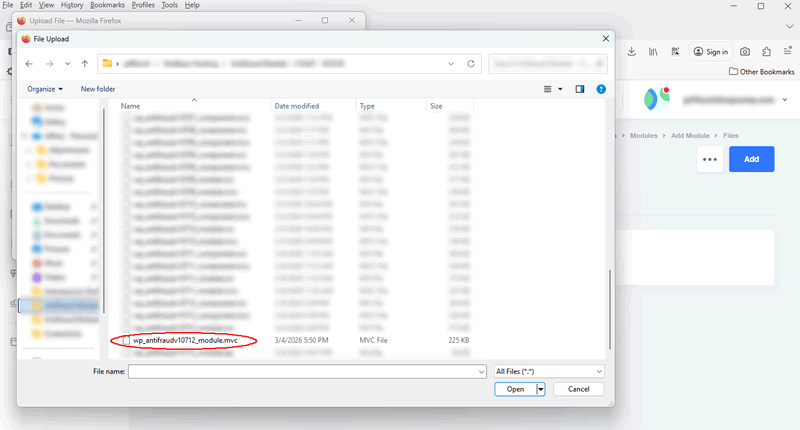
6 Click Choose File, select the system extension wp_antifraudv10721_module.mvc file, and click Open.
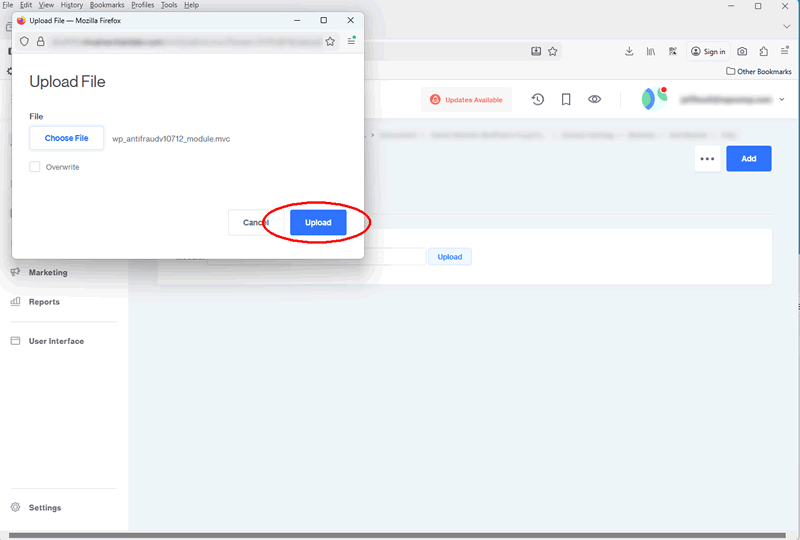
7 Click Upload to upload the module to your store.
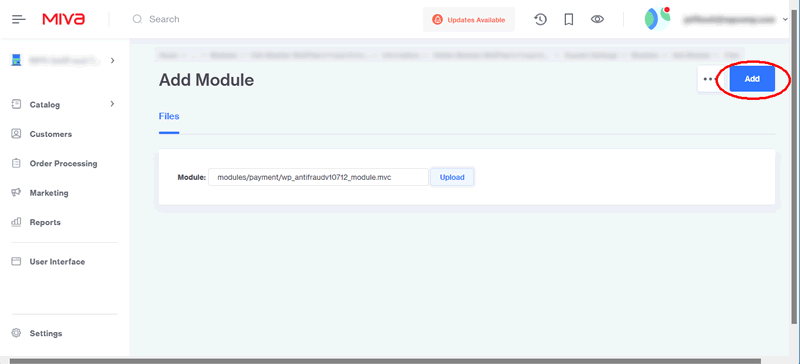
8 Click Add to register the module with Miva Merchant.
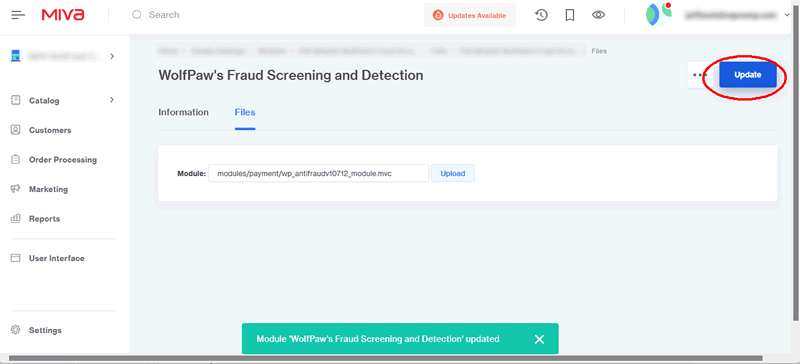
9 Click Update. You'll see a confirmation message.
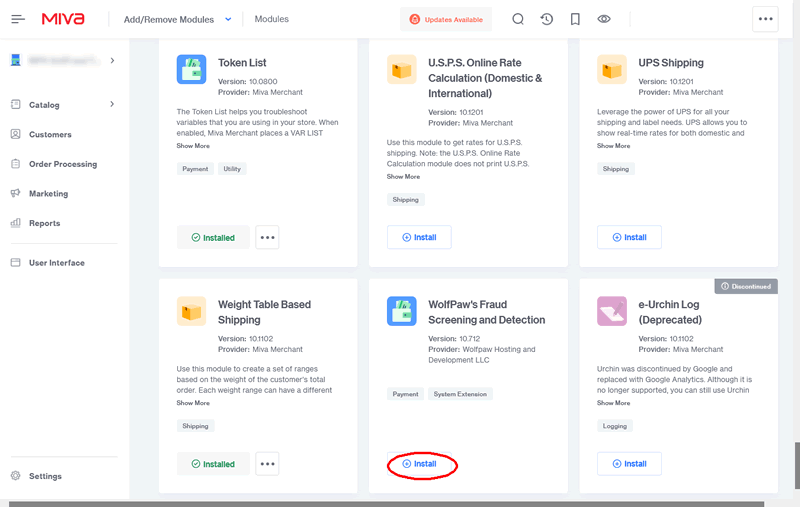
10 Go to Settings → Modules. Find WolfPaw's Fraud Screening and Detection in the module list and click Install.
11 The configuration screen appears. Continue to the Configuration Guide below.
Installation: Component/Item Version
Use this version if you have a custom checkout or one-page checkout where the system extension doesn't fire correctly.
1 Download and unzip the module package. Locate the component wp_antifraudv10721_component.mvc file on your computer.
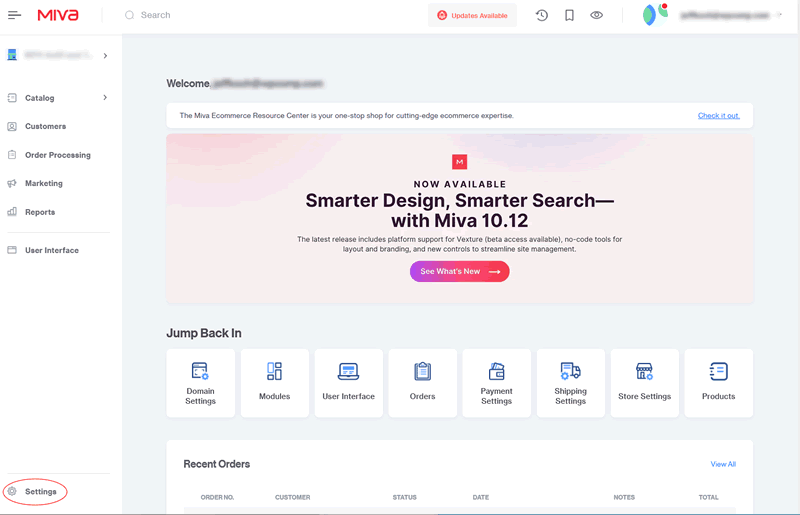
2 Open your Miva admin and go to Settings → Domain Settings → Modules.
3 Click Add Module, then Upload.
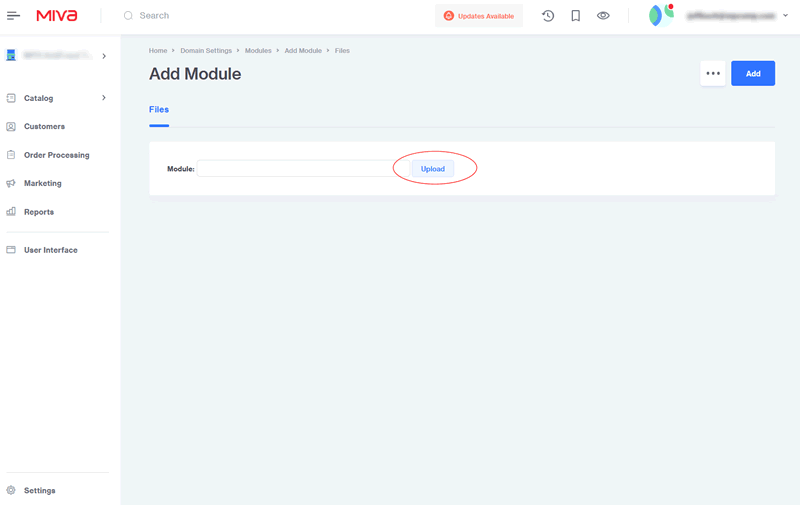
4 Click Choose File, select the component wp_antifraudv10721_component.mvc file, and click Open.
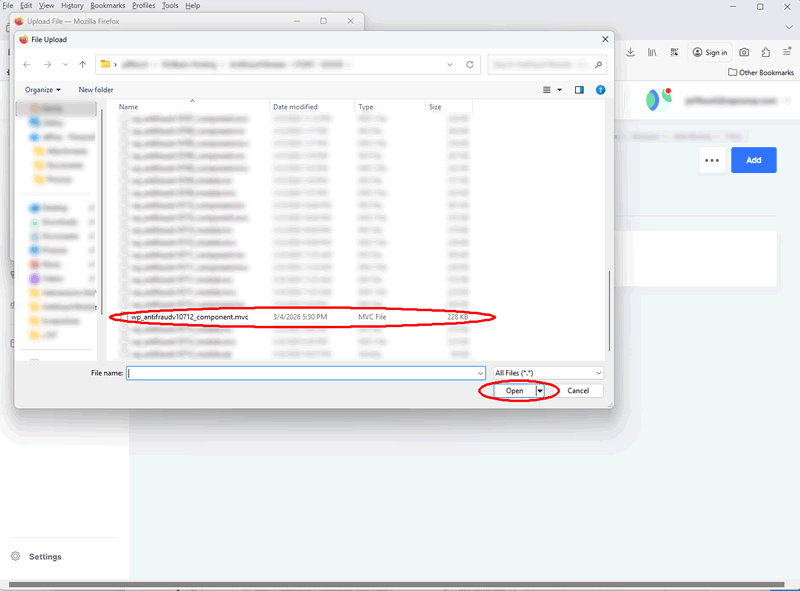
5 Click Upload, then Add to install the module.
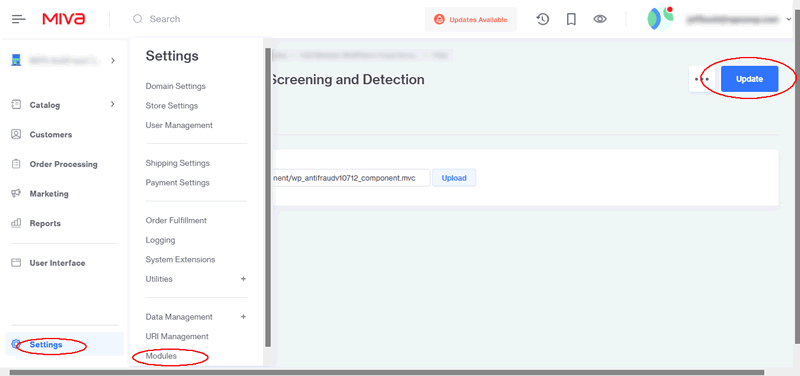
6 A confirmation message appears. Click Information and ensure the Active box is checked. Then go to Settings → Modules.
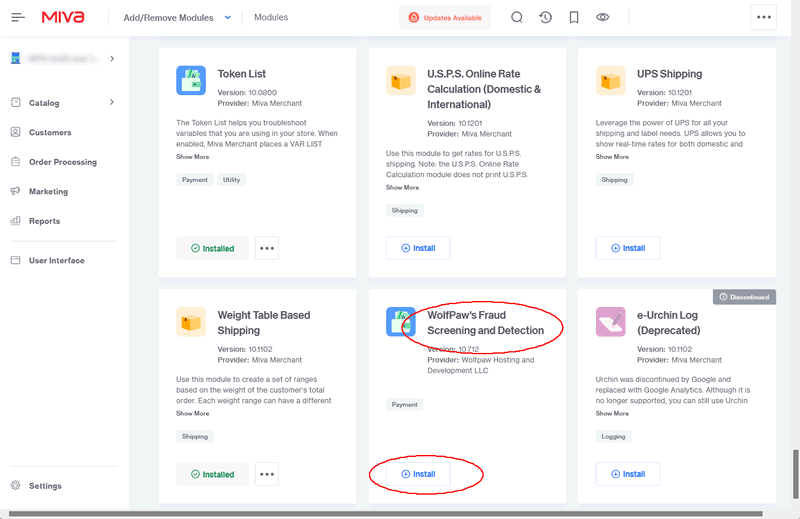
7 Find WolfPaw's Fraud Screening and Detection and click Install. This displays the configuration screen.
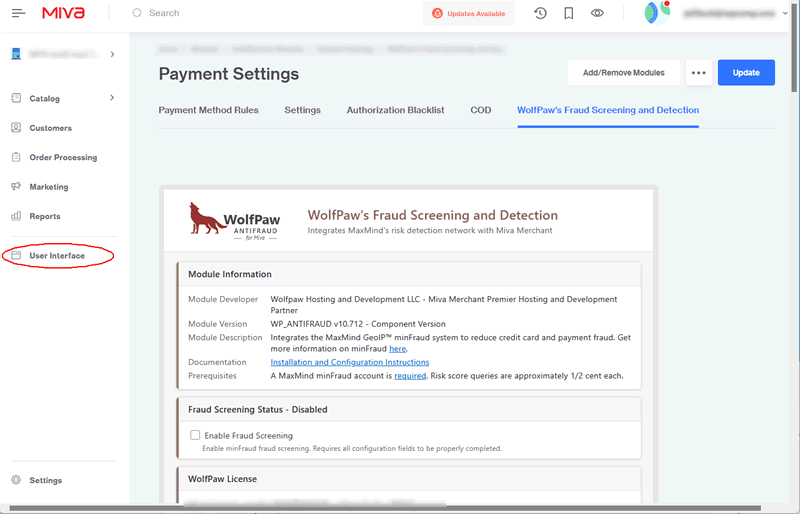
8 Now add the component item to your checkout page. Click User Interface.
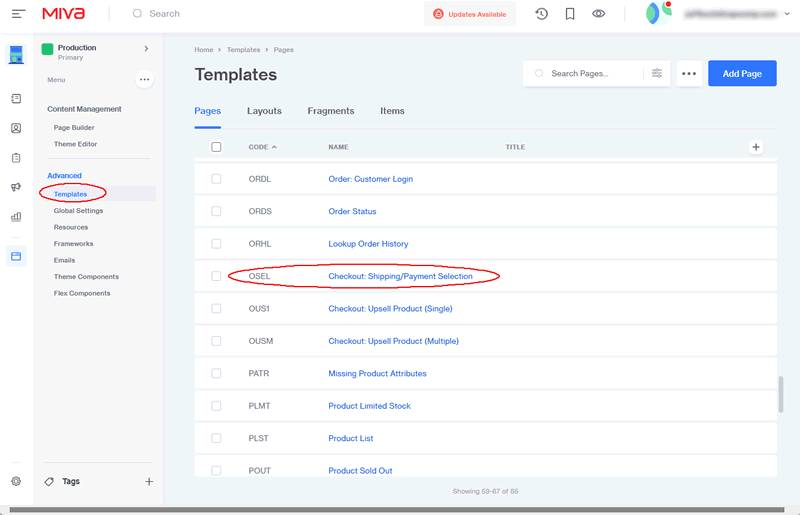
9 Navigate to Templates → Pages → OSEL Checkout: Shipping/Payment Selection (or your custom checkout page).
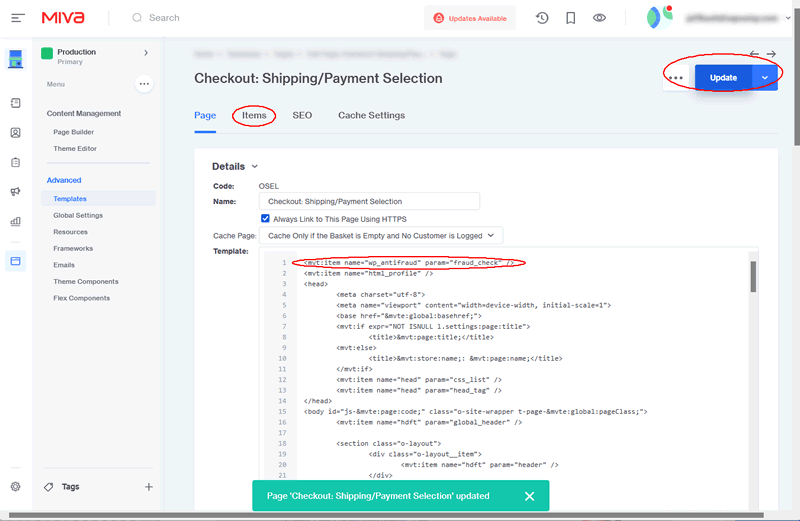
10 Add this code at the top of the template:
<mvt:item name="wp_antifraud" param="fraud_check" />
Click Update to save and then Items at the top.
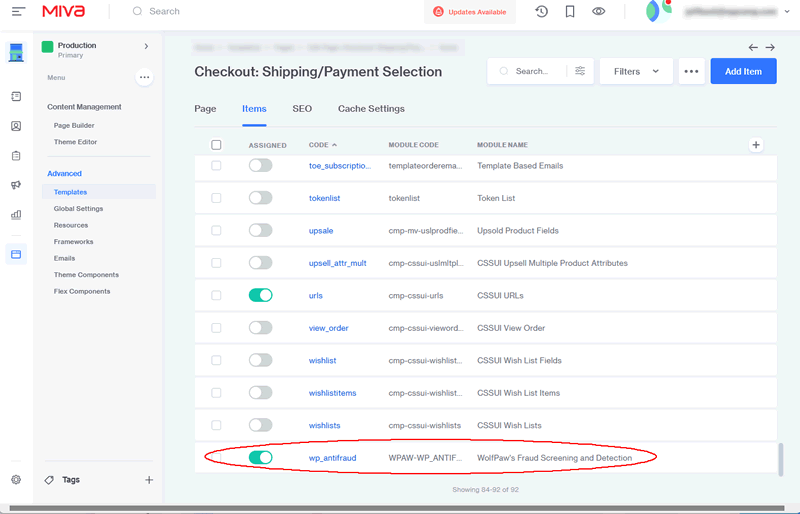
11 Scroll down the list of items and find wp_antifraud. Turn the switch to On. It should turn green.
12 Installation is complete. Continue to the Configuration Guide below.
Configuration Guide
Configuration is the same for both module versions. To access the configuration screen:
- Go to Settings → Payment Settings
- Click WolfPaw's Fraud Screening and Detection in the module tabs
- If you don't see it, click the ... (more) button to reveal additional modules
The admin interface is organized into cards, each covering a specific area of functionality. The cards and their settings are described below in the order they appear on the screen.
Module Information
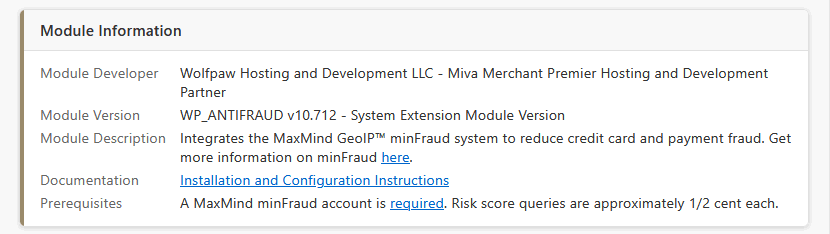
Read-only display showing the installed module version, module code, and Miva Merchant version. Useful for confirming which version is installed and for support requests.
Fraud Screening Status

Master switch that controls whether the module is actively screening orders. The card header shows "Enabled" or "Disabled" at a glance.
Enable Fraud Checking
Check to activate pre-payment fraud screening. Requires all configuration fields (MaxMind credentials, license agreement, etc.) to be properly completed. When unchecked, orders pass through without screening.
WolfPaw License
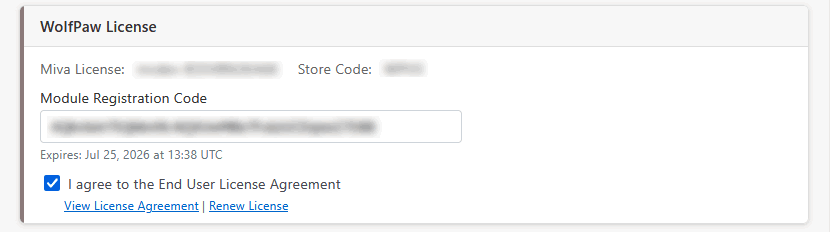
Your WolfPaw module license registration. The registration code is tied to your Miva Domain License number (see
Find Your Miva License).
Module Registration Code
Enter the registration code you received when purchasing the module. The license expiration date is displayed below this field.
Accept License Agreement
Check this box to accept the End User License Agreement. Required to enable the module.
MaxMind Configuration
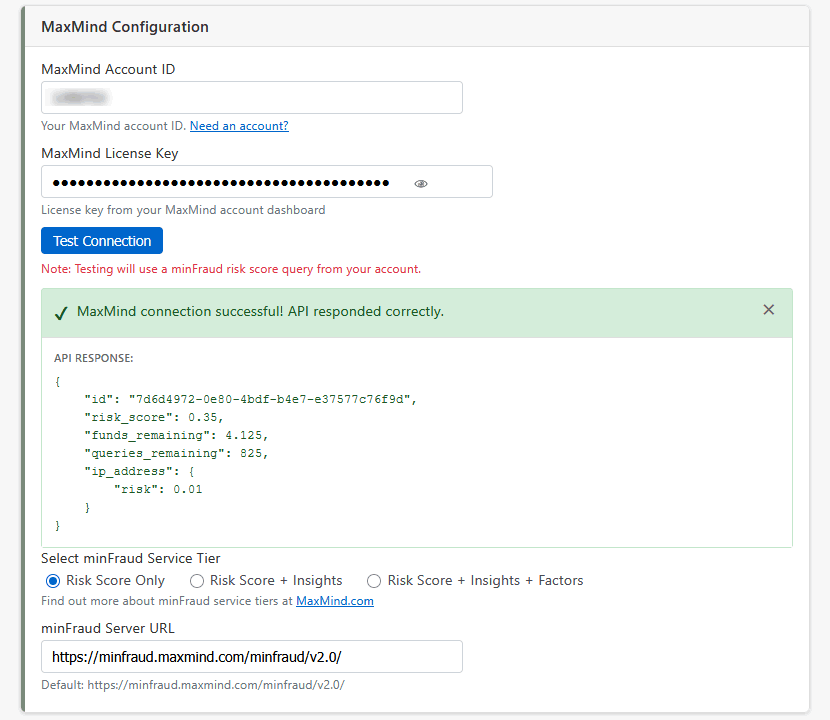
MaxMind Account ID
Your numeric account ID from the MaxMind account dashboard.
MaxMind License Key
Generate a license key in your MaxMind account under Account → Manage License Keys. The field is masked for security; click the eye icon to reveal.
Test Connection
Click this button to verify your MaxMind credentials are working. The test sends a minimal query to MaxMind and displays your account status and remaining query count in a slide-down window. Note: the test uses one risk score query from your account.
minFraud Service Tier
| Tier | Description |
|---|
| Score | Basic risk score only. Lowest cost per query. Sufficient for most stores. |
| Insights | Score plus detailed risk factors and IP intelligence. |
| Factors | Most detailed analysis with all contributing factors and explanations. |
minFraud Server URL
The MaxMind API endpoint. Leave at the default unless directed otherwise by MaxMind support.
Default: https://minfraud.maxmind.com/minfraud/v2.0/
IP Velocity Protection New
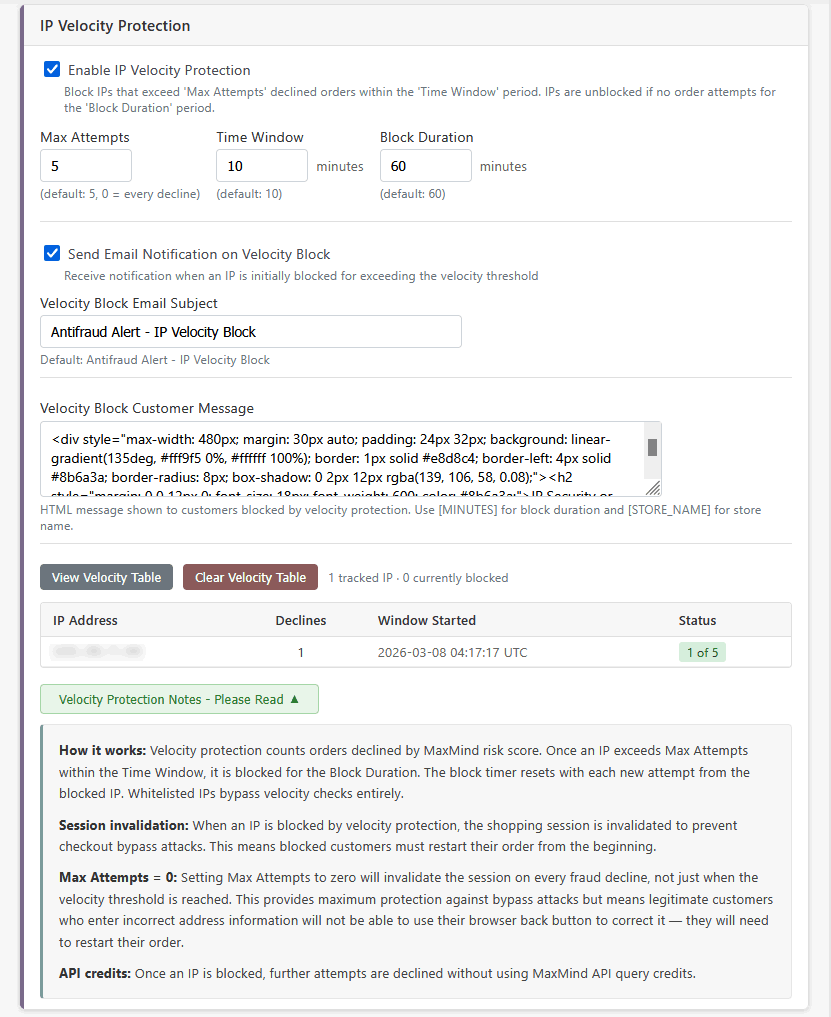
Detects and blocks IP addresses that repeatedly trigger declined orders. This is your defense against card-testing bots and persistent fraudsters. When an IP exceeds the decline limit within the fixed time window, it is blocked and the customer's checkout session is invalidated to prevent bypass attacks. The block duration slides forward with each new attempt from the blocked IP, so it must remain completely inactive for the full block period before being released.
Enable IP Velocity Protection
Check to activate velocity-based IP blocking.
Max Attempts
Number of declined orders from the same IP that triggers a block. Set to 0 to block on every single decline.
Default: 5
Time Window
The fixed period (in minutes) within which declined attempts are counted. If the IP accumulates the maximum number of declines within this period, it is blocked.
Default: 10 minutes
Block Duration
The inactivity period (in minutes) required before a blocked IP is released. The block timer slides forward with each new attempt from the blocked IP, so the block is only lifted after the IP has been inactive for the full duration.
Default: 60 minutes
Send Email Notification on Velocity Block
Check to receive an email when an IP is first blocked for exceeding the velocity threshold.
Velocity Block Email Subject
Subject line for velocity block notification emails. The blocked IP address is appended automatically.
Default: Antifraud Alert - IP Velocity Block
Velocity Block Customer Message
HTML message shown to customers when their IP is blocked by velocity protection. Use [MINUTES] for the block duration and [STORE_NAME] for your store name.
View Velocity Table / Clear Velocity Table
Administrative buttons to view the current velocity tracking table in a slide-down window (showing tracked IPs, decline counts, window start times, and block status) or clear all tracked entries. All times displayed are in UTC.
Query Caching
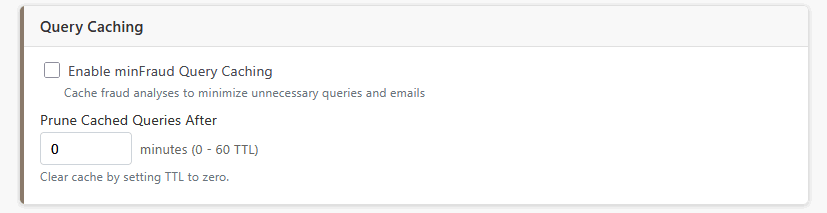
Caches minFraud queries and accept/decline results to reduce redundant queries and unnecessary merchant emails. When a customer shops around your site—adding items, checking shipping, comparing options—the module reuses the cached decision without re-querying MaxMind, unless the customer changes their billing or shipping information.
Enable minFraud Query Caching
Check to activate query result caching. The module caches declined, accepted, and whitelisted results.
Prune Cached Queries After
How long to keep cached queries (0–60 minutes). After this time, a new query will be sent to MaxMind. Set to 0 to effectively clear the cache.
Default: 20 minutes. Recommended: 10–15 minutes.
Automatic cache clearing: If the decline threshold is changed, all cached declined and accepted queries are automatically cleared. If the IP whitelist is changed, cached whitelisted queries are cleared. This ensures cached decisions always reflect your current settings.
Email Notifications
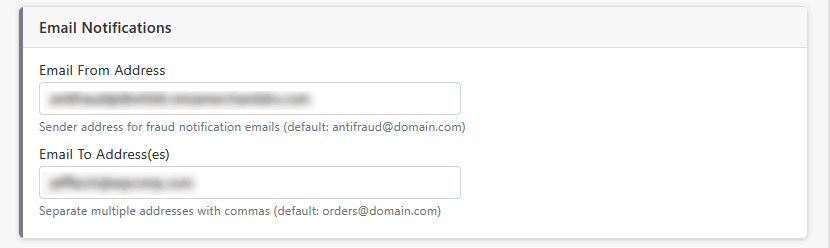
Configure the sender and recipient addresses for all email notifications generated by the module (fraud alerts, velocity blocks, processing errors, and whitelisted order notifications).
Email From Address
The "From" address for all notification emails (e.g., orders@yourstore.com).
Email To Address(es)
Where to send notification emails. Separate multiple addresses with commas.
Cart Behind Proxy / CDN
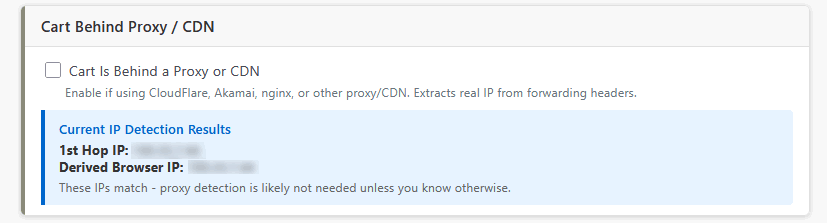
If your store is behind a CDN or reverse proxy (CloudFlare, Akamai, nginx, etc.), the module needs to look at HTTP forwarding headers to find the customer's real IP address. This card also displays the current IP detection results so you can verify the configuration.
Cart Is Behind a Proxy or CDN
Enable if your site uses CloudFlare, Akamai, nginx, or any proxy/CDN. The module checks CF-Connecting-IP, True-Client-IP, X-Real-IP, and X-Forwarded-For headers to find the real customer IP.
Current IP Detection Results
Displays the 1st Hop IP (the IP directly connecting to your server) and the Derived Browser IP (the customer's real IP from proxy headers). If these differ, you are behind a proxy and should check the box. If they match, proxy detection is likely not needed.
Whitelisting
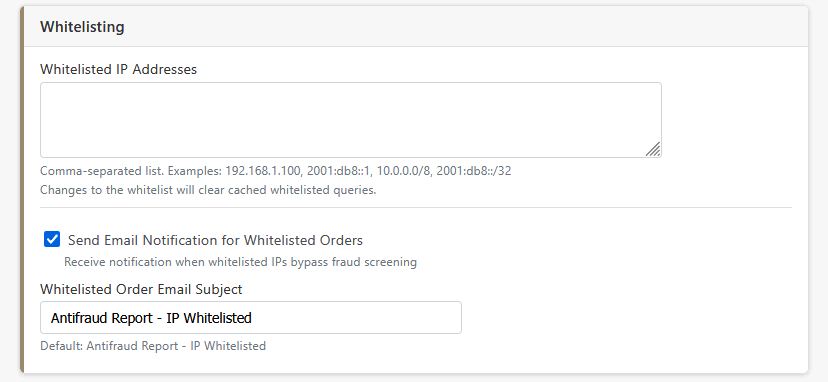
IP addresses or networks that should bypass fraud screening entirely. Useful for whitelisting your office IP for phone/manual orders, or trusted partner networks.
Whitelisted IP Addresses
Comma-separated list of IPs or CIDR ranges. Supports both IPv4 and IPv6. Examples: 192.168.1.100, 10.0.0.0/8, 2001:db8::1, 2001:db8::/32. Changes to the whitelist automatically clear cached whitelisted queries.
Send Email Notification for Whitelisted Orders
Check to receive notification when orders come from whitelisted IPs.
Whitelisted Order Email Subject
Subject line for whitelisted order notification emails.
Default: Antifraud Report - IP Whitelisted
Logging Updated
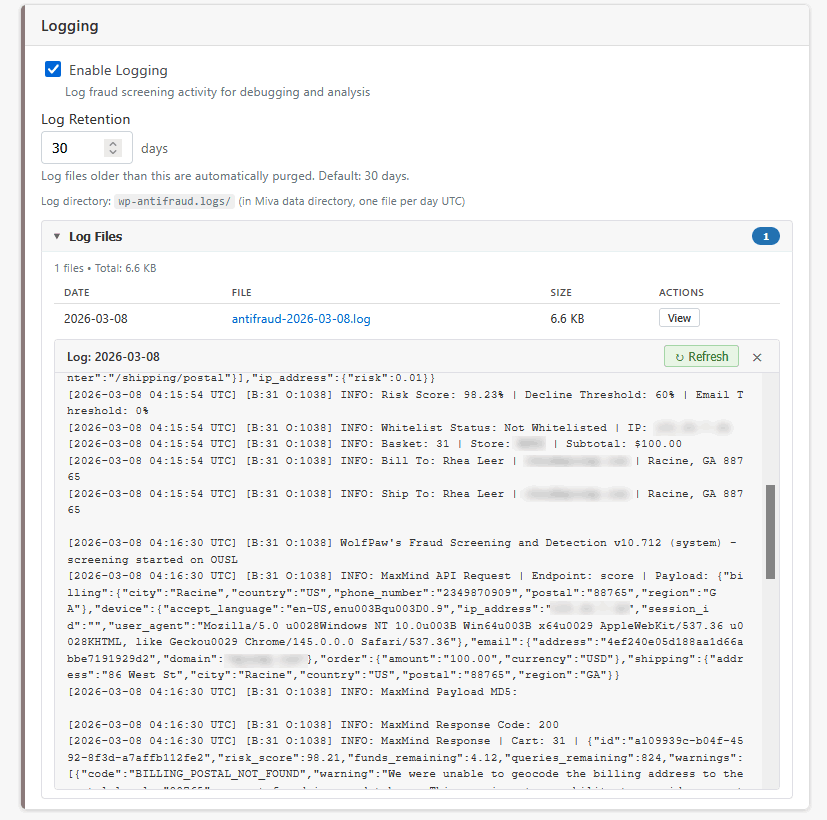
Records all fraud screening activity to daily UTC-dated log files. Log files are stored in wp-antifraud.logs/ within the Miva data directory, one file per day. The admin panel includes a built-in log viewer with file browsing and content display (capped at 512 KB for performance; larger files should be downloaded via FTP).
Enable Logging
Check to activate fraud screening logging. Logs include: screening start with page code and module version (system/component), MaxMind API request payloads, response codes and risk scores, cache hits, velocity tracking events with decline counts (e.g., 1/3, 2/3), IP blocks, session invalidations, and processing errors with disposition (accepted/declined).
Log Retention
Number of days to keep log files. Files older than this are automatically purged when a new day's log is first created.
Default: 30 days
Log Files Panel
Collapsible panel listing all log files with dates, filenames, and sizes. Click View on any file to display its contents in the admin panel. Click Refresh to reload a displayed log.
Risk Thresholds
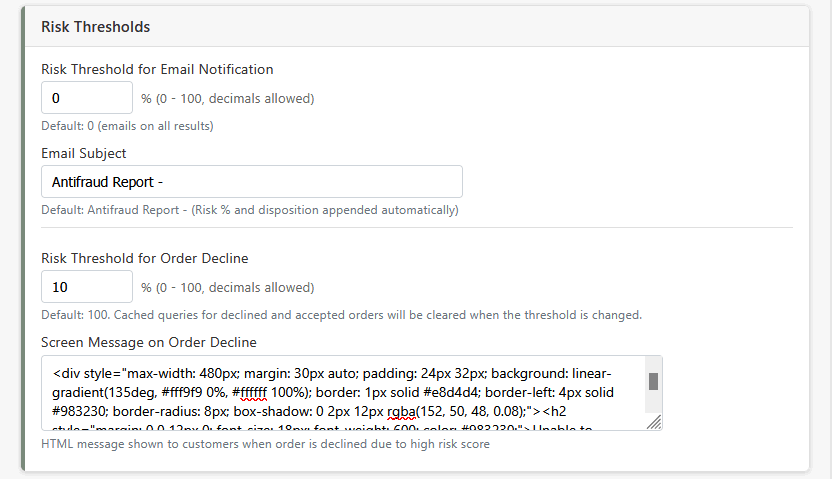
The core decision-making settings. These two thresholds determine when you're notified about order risk and when orders are automatically declined based on MaxMind's risk score.
Risk Threshold for Email Notification
You'll receive an email for any order with a risk score at or above this value. Set to 0% to get an email on every order (recommended when starting out). Decimals are allowed.
Default: 0%
Email Subject
Subject line for risk notification emails. The risk score percentage and disposition (Accepted/Declined) are appended automatically.
Default: Antifraud Report -
Risk Threshold for Order Decline
Orders with risk scores at or above this value are automatically declined. Decimals are allowed. Changing this threshold automatically clears all cached declined and accepted queries.
Default: 100% (no auto-decline). MaxMind recommends 3–5%, but start higher.
Screen Message on Order Decline
HTML message shown to customers when their order is declined due to a high risk score. Include your phone number so legitimate customers can contact you. Use [STORE_NAME] as a placeholder for your store name.
On Processing Error
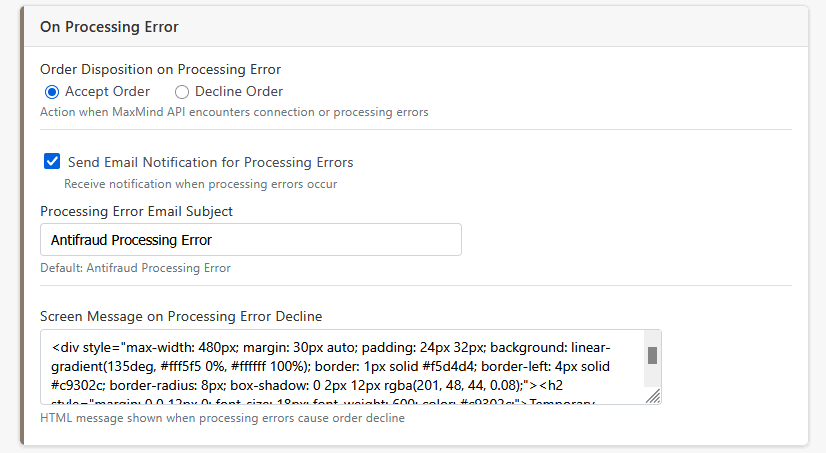
Controls what happens when the module can't reach MaxMind or encounters an API error (connection timeout, authentication failure, etc.). This is a fail-safe setting.
Order Disposition on Processing Error
- Accept Order (recommended) — Let the order proceed and send you an alert. Avoids blocking legitimate customers due to temporary API issues.
- Decline Order — Block the order until the issue is resolved. Use only if you must screen every order.
Send Email Notification for Processing Errors
Check to receive emails when processing errors occur. The email includes error details (HTTP status, error code, error message).
Processing Error Email Subject
Subject line for processing error notification emails.
Default: Antifraud Processing Error
Screen Message on Processing Error Decline
HTML message shown to customers when their order is declined due to a processing error (only applies if "Decline Order" is selected above). Use [STORE_NAME] as a placeholder.
How to Find Your Miva Domain License
Your WolfPaw registration code is tied to your Miva Domain License number. You'll need this when purchasing the module.
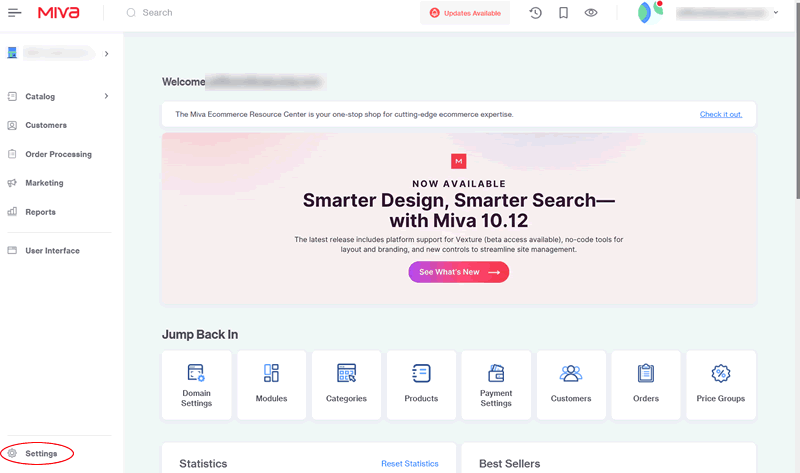
1 Open your Miva admin and click Settings.
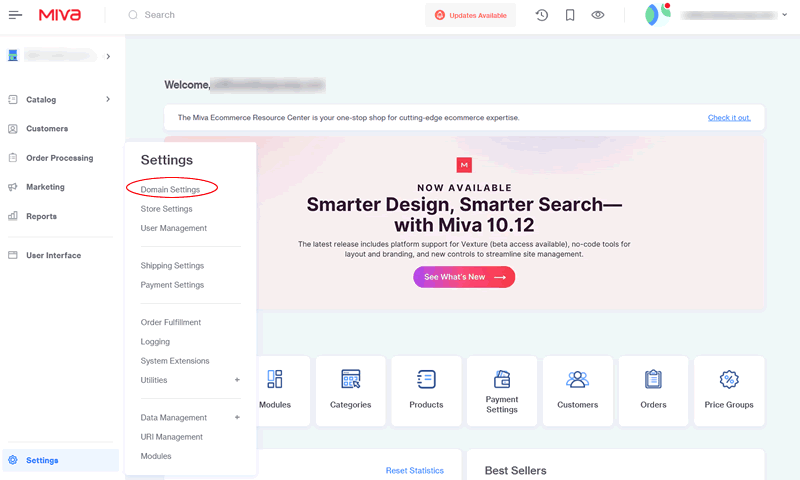
2 Click Domain Settings.
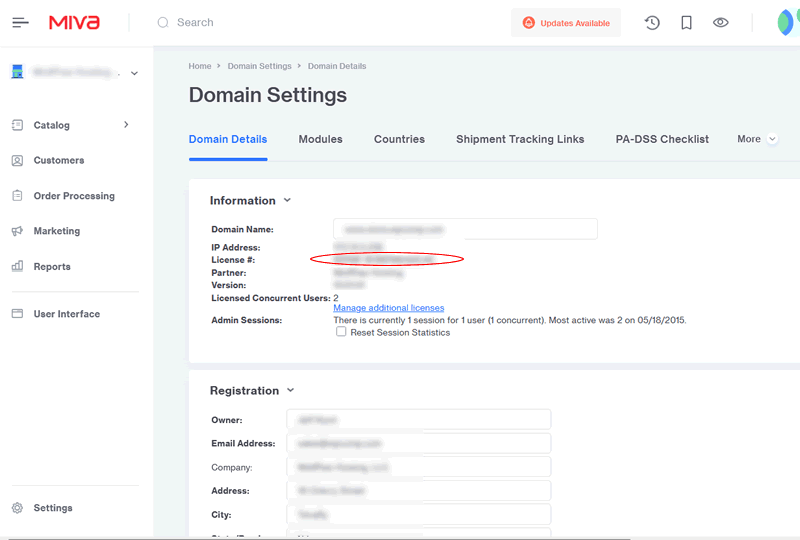
3 Your Miva Domain License is shown in the Information section on the line labeled License #.
Upgrading from Prior Versions
Upgrading from a prior version? Follow these steps:
Important: Make a copy of your current configuration settings before upgrading. Take a screenshot of your settings page. During the upgrade, the new version should find and use the configuration settings from the previous version, but having a backup is always wise.
- Record your current settings - Screenshot or write down your current configuration.
- Identify your current version type - Go to Settings → Domain Settings → Modules. Find and click on the antifraud module. Click Information. If the Module Features include "component", you have the component version; otherwise you have the system extension version. Be sure to upgrade to the matching version.
- Upload the new version - With the module selected, click Information and uncheck Active. Then click Files → Upload. Choose the new v10.7 file (matching your version type), click Open → Upload → Update. Click Information, check Active, and click Update again.
- Check your settings - Verify the migration of your settings and review the configuration instructions above for any new settings added in v10.7 (particularly IP Velocity Protection and Logging).
Database Migration: The upgrade process automatically handles all database changes. New tables for query caching (WP_MinFraud_Cache) and velocity tracking (WP_IP_Velocity) are created automatically. Existing columns are modified as needed (e.g., threshold columns are widened to support decimal values). Your existing configuration data in the WP_AMI table is preserved.
Whitelist Migration: If you had separate IPv4 and IPv6 whitelist fields in a prior version, they will be automatically merged into the new unified field. Old prefix notation (like "192.168.1") will be converted to CIDR format (like "192.168.1.0/24").
Uninstalling and Deleting the Module
If the upgrade fails or you want to start fresh, follow these steps to uninstall and delete the module:
Important: You'll need to know whether you're using the system extension or component version. Go to Settings → Domain Settings → Modules. Find the module and click Information. If the Module Features include "component", you have the component version; otherwise you have the system extension.
Uninstalling and Deleting the System Extension Version:
- Record your current settings - Screenshot your configuration.
- Uninstall the module - Go to Settings → Modules. Find WolfPaw's Fraud Screening and Detection. Click the three dots (…) and click Uninstall.
- Delete the module - Go to Settings → Domain Settings → Modules. Find the module, click Information, uncheck Active. Click the three dots next to Update, select Delete Module, and click Delete.
Uninstalling and Deleting the Component Version:
- Record your current settings - Screenshot your configuration.
- Identify pages using the component - Go to Settings → User Interface → Templates → Items. Find WolfPaw's Fraud Screening and Detection, click it, then select Pages. Note which pages have the switch turned on (green).
- Remove the item code from each page - Click the page title, find the line <mvt:item name="wp_antifraud" param="fraud_check" /> and delete it. Click Update.
- Unassign the item from the page - Click Items above. Find WolfPaw's Fraud Screening and Detection and turn the green switch off. Repeat for all pages.
- Uninstall the module - Go to Settings → Modules. Find the module, click the three dots, and click Uninstall. If a warning says the item is still assigned to pages, go back and remove it first.
- Delete the module - Go to Settings → Domain Settings → Modules. Find the module, click Information, uncheck Active. Click the three dots next to Update, select Delete Module, and click Delete.
Tips & Best Practices
Getting Started
- Start conservative: Set the email threshold to 0% and the decline threshold to 100%. Review risk score emails for a week or two before enabling automatic declining.
- Enable logging from day one: Turn on logging immediately. The log is invaluable for understanding how the module processes orders and diagnosing issues.
- Enable IP Velocity Protection: The default values are fine.
- Turn on query caching: Enable caching with a 10–15 minute TTL to reduce MaxMind costs.
- Add your email addresses: Make sure the From and To addresses are correct.
- Update your contact info: Make sure the decline message includes a real phone number so legitimate customers can reach you.
- Whitelist your office: Add your office IP to the whitelist so phone and manual orders don't trigger fraud checks.
Understanding Risk Scores
- Most legitimate orders have risk scores under 2%.
- MaxMind recommends declining orders above 3–5%.
- Start with a higher decline threshold (30–40%) and lower it gradually as you gain confidence.
- Watch the logs for patterns. If scores between 10–30% are consistently legitimate, your threshold should be above that range.
Velocity Protection Recommendations
- Start with defaults: 5 attempts, 10 minute window, 60 minute block. This catches card-testing bots without being overly aggressive.
- For high-value stores: Consider tighter settings like 3 attempts in 10 minutes with a longer block (120–240 minutes).
- For high-volume stores: Increase max attempts (8–10) to avoid false positives from shared corporate IPs.
- Monitor the velocity table: Periodically check it to verify you're catching real attacks, not creating false positives.
- Enable velocity block emails: At least initially, to verify the behavior matches your expectations.
Country Blocking
You can block orders from specific countries through your MaxMind account:
- Log into your MaxMind account at maxmind.com
- Go to minFraud → Country Block List
- Change any country to "Block" to automatically assign a 100% risk score
Calculating Your Optimal Decline Threshold
Use this formula to find a mathematically optimal threshold:
If (profit × (100 - riskScore)) > (fraudLoss × riskScore), accept the order
Where:
- profit = your margin if the order is legitimate
- fraudLoss = total cost if the order is fraudulent (product cost + shipping + chargeback fees)
Example: If your gross margin is 25% and fraud costs equal the order value, you'd decline orders with risk scores above 25%.
Query Caching Notes
- All query caching activity is noted in the log, including cached entries, cache hits, and dispositions.
- The module caches queries that are declined, accepted, and whitelisted.
- If the decline threshold is changed, all cached declined and accepted queries are cleared.
- If the IP whitelist is changed, cached whitelisted queries are cleared.
- 10 to 15 minutes is generally reasonable for the cache TTL.
Log Timestamps and Time Zones
All timestamps in the module—log entries, log filenames, email timestamps, and admin UI displays—use UTC (Coordinated Universal Time). This is intentional: Miva's servers run in Florida and California, merchants can be anywhere in the world, and customers are everywhere too. UTC is the only timezone that means the same thing to everyone looking at the data, and ensures log file dates match the timestamps inside them.
Default Screen Messages
The default screen messages for order decline and processing error are styled HTML. When upgrading, existing screen messages are preserved. If you'd like the v10.7 defaults, copy and paste the HTML below into the appropriate fields:
Screen Message on Order Decline:
<div style="max-width: 480px; margin: 30px auto; padding: 24px 32px; background: linear-gradient(135deg, #fff9f9 0%, #ffffff 100%); border: 1px solid #e8d4d4; border-left: 4px solid #983230; border-radius: 8px; box-shadow: 0 2px 12px rgba(152, 50, 48, 0.08);"><h2 style="margin: 0 0 12px 0; font-size: 18px; font-weight: 600; color: #983230;">Unable to Process Order</h2><p style="margin: 0 0 16px 0; color: #555; font-size: 15px; line-height: 1.6;">We are sorry, but we were unable to process your order at this time.</p><p style="margin: 0 0 16px 0; color: #555; font-size: 15px; line-height: 1.6;">Please verify that your billing and shipping information is correct, then try again. If you continue to experience issues, please contact us for assistance.</p><div style="margin-top: 16px; padding-top: 16px; border-top: 1px solid #e8d4d4; font-size: 14px; color: #666;"><span style="font-weight: 600; color: #444;">[STORE_NAME]</span> Customer Service</div></div>
Screen Message on Processing Error:
<div style="max-width: 480px; margin: 30px auto; padding: 24px 32px; background: linear-gradient(135deg, #fff5f5 0%, #ffffff 100%); border: 1px solid #f5d4d4; border-left: 4px solid #c9302c; border-radius: 8px; box-shadow: 0 2px 12px rgba(201, 48, 44, 0.08);"><h2 style="margin: 0 0 12px 0; font-size: 18px; font-weight: 600; color: #c9302c;">Temporary Processing Issue</h2><p style="margin: 0 0 16px 0; color: #555; font-size: 15px; line-height: 1.6;">We apologize for the inconvenience. Our order verification system is temporarily unavailable.</p><p style="margin: 0 0 16px 0; color: #555; font-size: 15px; line-height: 1.6;">Please wait a moment and try again. If the problem persists, please contact us and we will be happy to assist you with your order.</p><div style="margin-top: 16px; padding-top: 16px; border-top: 1px solid #f5d4d4; font-size: 14px; color: #666;"><span style="font-weight: 600; color: #444;">[STORE_NAME]</span> Customer Service</div></div>
Troubleshooting
- Orders not being checked: Make sure "Enable Fraud Checking" is turned on and you've accepted the license agreement. For component installs, verify the template tag is on the correct page and the item is turned on.
- Connection errors: Use the Test Connection button to verify your MaxMind credentials. Check the log for HTTP status codes and error messages.
- IP detection issues: If your site is behind a CDN, enable "Cart Behind Proxy/CDN" and check the IP Detection Results display.
- Admin screen goes blank after Update: This can occur if the log directory doesn't exist yet when changing the decline threshold or whitelist. Navigate back to the module settings to recover; the setting change will have been saved.
- Check the log: Enable logging and use the built-in log viewer for detailed information about every screening event.
Need Help?
Email: antifraud@wpcomp.com
Website: www.wpcomp.com
WolfPaw's Fraud Screening and Detection Module
© 2009–2026 WolfPaw Hosting and Development LLC
Documentation updated March 2026